
เนื้อหานี้จะมาดูเกี่ยวกับการนำไฟล์จากภายนอก มาใช้
งานใน app หรือการ import ไฟล์เข้ามาใน app เพื่อใช้งาน
เป็นการเลือกไฟล์ข้อมูลที่อยู่ในเครื่องหรือจากที่จัดเก็บภาย
นอกเช่น SD card ซึ่งเราอาจจะดาวน์โหลดมาไว้ หรือนำเข้ามา
จากวิธีทางอื่น เนื้อหาตอนนี้ใช้โค้ดต่อเนื่องจากตอนที่แล้ว ทบทวน
ได้ที่บทความด้านล่าง
ประยุกต์สร้าง TextEditor อย่างง่าย ใน Flutter https://www.ninenik.com/content.php?arti_id=1069
https://www.ninenik.com/content.php?arti_id=1069 via @ninenik
*เนื้อหานี้ใช้เนื้อหาต่อเนื่องจากบทความ https://www.ninenik.com/content.php?arti_id=1069
การ import ไฟล์จากภายนอก เราจะใช้ package ที่ชื่อว่า File Picker ซึ่งเป็นตัวที่
เรียกใช้งานรูปแบบวิธีการเรียกดูไฟล์ของระบบที่มีอยู่แล้วมาใช้อีกที โดยสามารถกำหนดให้เราสามารถ
เลือกไฟล์ทั้งแบบเลือกไฟล์เดียว หรือหลายไฟล์พร้อมกัน หรือแบบมีกำหนดชนิดของไฟล์ที่อนุญาต
ตัว package นี้ก็สามารถทำได้ สามารถดูความสามารถทั้งหมดที่หน้าเพจ package ซึ่งในที่นี้จะแนะนำ
เฉพาะส่วนที่จำเป็นเบื้องต้นเท่านั้น
การติดตั้ง File Picker
กำหนดใน package dependencies ที่ชื่อ File Picker เข้าไปในไฟล์ pubspec.yaml ดังนี้
dependencies:
  file_picker: ^8.1.2
จากนั้นทำการ import มาใช้งานในหน้าที่ต้องการ
import 'package:file_picker/file_picker.dart';
การทำงานของ File Picker
เมื่อเราทำการเรียกใช้งานคำสั่งเพื่อ import ไฟล์ผ่าน file picker ก็จะทำการเปิด app ของระบบที่จัดการเกี่ยว
กับไฟล์ต่างๆ ในเครื่องที่เราสามารถเลือกโฟลเดอร์หรือแหล่งข้อมูลที่จะดูข้อมูลไฟล์ ซึ่งปกติถ้าเข้าใช้งานครั้งแรก
ก็จะถามขอสิทธิ์การเข้าถึงไฟล์และโฟลเดอร์ก่อน ให้เราอนุญาต เมื่อเราเลือกไฟล์ที่ต้องการแล้ว ตัว app จัดการ
ไฟล์นั้นก็จะปิดไป เราก็จะกลับมายัง app ของเรา ไฟล์ที่ถูกเลือกจะถูก copy ไปยังโฟลเดอร์ cache/file_picker
ให้อัตโนมัติ เราก็จะได้ข้อมูลของไฟล์ที่ import สำหรับไปจัดการต่อ แต่ถ้าสมมติเราเปิด app ที่จะเลือกไฟล์แล้ว
แต่เปลี่ยนใจยกเลิกการเลือกไฟล์ app จัดการไฟล์ก็จะปิดตัวไป และส่งค่า null กลับมา เราก็สามารถกำหนด
การทำงานกรณีเป็น null ได้ตามต้องการ รูปแบบนี้คือหลักการทำงานเบื้องต้น
จะเห็นว่ารูปแบบการทำงานข้างต้นถึงจะเป็นการ import ไฟล์เข้ามาใน app แต่ก็ยังอยู้ใน cache ที่สามารถถูก
ลบออกไปตอนไหนก็ได้ ดังนั้นเราต้องกำหนดคำสั่งการทำงานต่อถ้าต้องการนำไฟล์ที่ import มา ไปไว้ในโฟลเดอร์
ของ app ซึ่งสำหรับ flutter ก็จะใช้เป็นโฟลเดอร์ app_flutter ดูรุปโครงสร้างโฟลเดอร์ในระบบ ทบทวนด้านล่าง
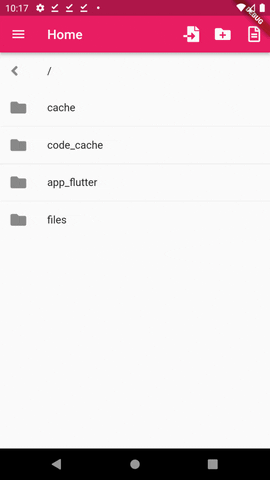
ในรูปตัวอย่างเราเพิ่มไอคอนสำหรับ import ไฟล์เข้ามาเป็นตัวแรก ถ้ากดที่ไอคอน ก็จะไปทำการเรียกใช้งานคำสัง
import ไฟล์ ดูตัวอย่างคำสั่ง import ไฟล์ ที่ใช้งาน file_picker เบื้องต้น
// คำสั่ง import ไฟล์ผ่าน file_picker
void _importFile() async {
  try{
    // FilePickerResult? result = await FilePicker.platform.pickFiles();
    FilePickerResult? result = await FilePicker.platform.pickFiles(allowMultiple: true);
    if (result != null) {
      // File _file = File(result.files.single.path!);
      List<File> _file = result.paths.map((path) => File(path!)).toList();
      print(_file);
    } else {
      print("User canceled the picker");
    }
  }catch(e){
    print(e);
  }
}
ในตัวอย่างด้านบน ได้ทำการคอมเม้นท์ปิดส่วนของการเลือกทีละไฟล์ไว้ กรณีที่ใช้เป็นแบบไฟล์เดียว ตัวแปร
_file จะคืนค่าเป็นข้อมูลไฟล์เดียวมาให้ ถ้ามีการ import และเลือกแบบหลายไฟล์ได้ ก็จะคืนค่าเป็น List<File>
ซึ่งอาจจะมีหลายไฟล์หรือไฟล์เดียวก็ได้ ขึ้นกับว่าจะเลือกกี่ไฟล์ ในกรณีที่ result เป็น null หรือยกเลิกการเลือก
ไฟล์ ในตัวอย่างเราแค่ print ข้อความแจ้งเท่านั้น แต่ถ้ามีการประยุกต์อย่างอื่น ก็สามารถกำหนดคำสั่งการทำงาน
เพิ่มเติมส่วนนี้ได้
มาลองดูคำสั่งการทำงานเบื้องต้น คือเราจะเลือก 2 ไฟล์เพื่อดูผลลัพธ์
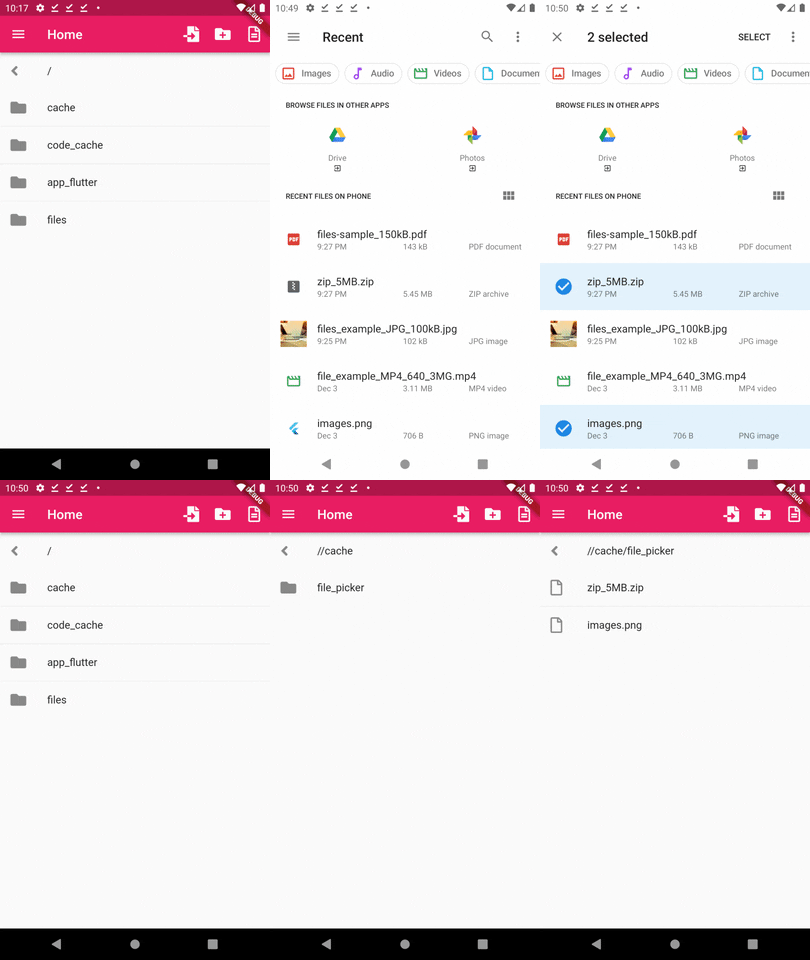
จะเห็นว่าเมื่อเลือกไฟล์เสร็จแล้วก็กลับมายังหน้า app ปกติเหมือนไม่มีอะไรขึ้น แต่พอเราเข้าไปในโฟลเดอร์ที่
ชื่อ cache / file_picker ตามตัวอย่าง ก็จะเห็นไฟล์ที่เราทำการ import เข้ามา ไฟล์ที่ตำแหน่งนี้ ถ้าแค่นำไปแสดง
ชั่วคราว เช่น นำรูปเข้ามาและแสดงใน widget โดยยังไม่มีการบันทึกไว้ในระบบ เราก็อาจจะใช้ path ใน ตำแหน่ง
cache แสดงก่อนก็ได้
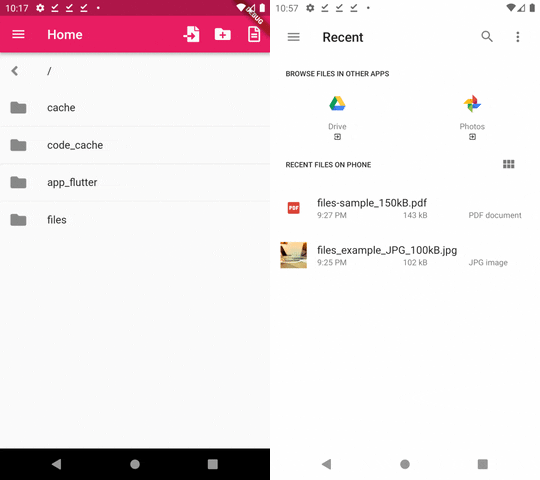
มาดูตัวอย่างการกำหนดการตั้งค่าเพิ่มเติม
FilePickerResult? result = await FilePicker.platform.pickFiles(
  allowMultiple: true,
  type: FileType.custom,
  allowedExtensions: ['jpg', 'pdf', 'doc'],
);
ผลที่ได้ก็จะแสดงเฉพาะไฟล์ที่มีนามสกุลตามที่กำหนดเท่านั้นให้เราเลือก เป็นการกรองไฟล์ที่จะ import ให้สามารถ
เลือกได้สะดวกมากขึ้น
เราสามารถดูรายละเอียดของไฟล์เพิ่มเติมได้ ด้วยคำสั่งดังนี้
if (result != null) {
  // File _file = File(result.files.single.path!);
  List<File> _file = result.paths.map((path) => File(path!)).toList();
  result.files.forEach((file) { // ดูรายละเอียดข้อมูลของไฟล์
    print(file.name);
    print(file.bytes);
    print(file.size);
    print(file.extension);
    print(file.path);
  });
  // print(_file);
} else {
  print("User canceled the picker");
}
ต่อไปเราจะประยุกต์โดยการใช้งาน คือ จากปกติ เมื่อ import เข้ามาแล้วจะอยู่ในส่วน cache เราก็จะ
ทำการ copy มาไว้ในโฟลเดอร์ app ที่กำลังใช้งาน
// คำสั่ง import ไฟล์ผ่าน file_picker
void _importFile() async {
  try{
    // FilePickerResult? result = await FilePicker.platform.pickFiles();
    FilePickerResult? result = await FilePicker.platform.pickFiles(allowMultiple: true);
    if (result != null) {
      // File _file = File(result.files.single.path!);
      List<File> _file = result.paths.map((path) => File(path!)).toList();
      result.files.forEach((file) async { // วนลุป copy ไฟล์ไปยังโฟลเดอร์ที่ใช้งาน
        // กำหนด path ของไฟล์ใหม่ แล้วทำการ copy จาก cache ไปไว้ใน app
        String newPath = "${_currentFolder!.path}/${file.name}";
        var cachefile = File(file.path!); // กำหนด file object
        var newFile = await cachefile.copy(newPath);

        // ข้อมูลไฟล์
        print(file.name);
        print(file.bytes);
        print(file.size);
        print(file.extension);
        print(file.path);
        // ตัวสุดท้ายทำงานเสร็จ
        if(file == result.files.last){
          // โหลดข้อมูลใหม่อีกครั้ง
          setState(() {
            _setPath(_currentFolder!);
          });
        }
      });
    } else {
      print("User canceled the picker");
    }
  }catch(e){
    print(e);
  }
}
ดูตัวอย่างผลลัพธ์การทำงาน
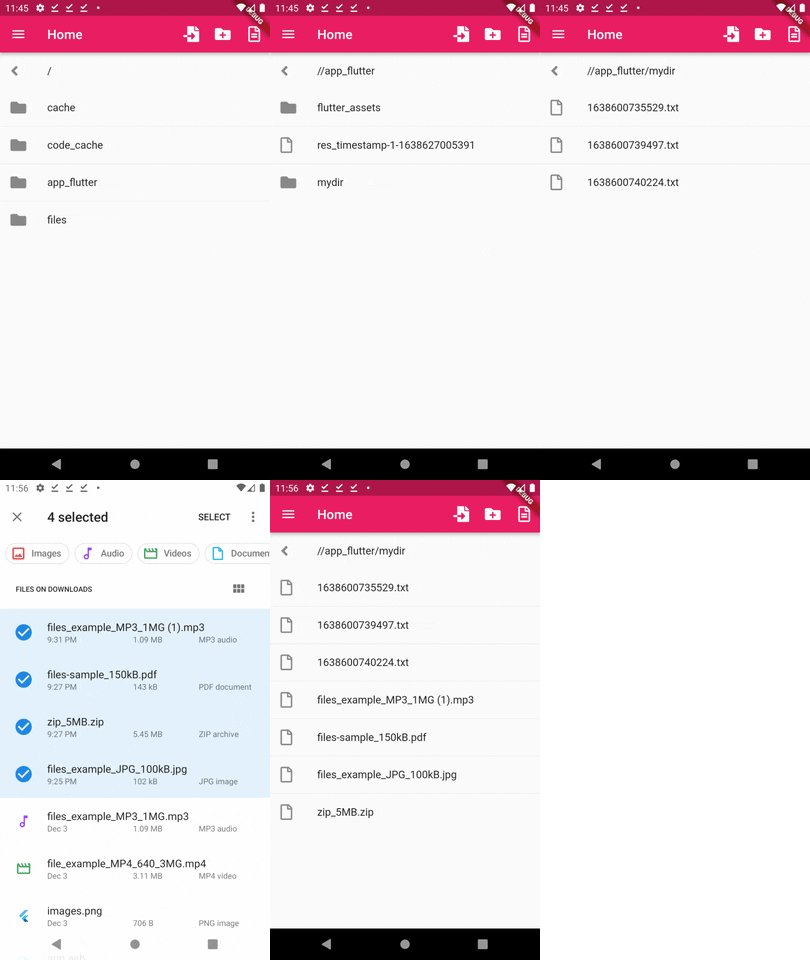
เริ่มต้นเราเข้าไปยังโฟลเดอร์ของข้อมูล app ที่เราจะเก็บไฟล์ที่ import จากนั้นทำการเลือกไฟล์
ทั้งหมด 4 ไฟล์ หลังจากเลือกไฟล์ ไฟล์ทั้งหมดจะถูกนำไปเข้ามาใน cahce และเราทำคำสั่ง copy
มาไว้ในส่วนของโฟลเดอร์ที่เรากำลังใช้งานอยู่ รายการไฟล์ที่ import เข้ามาก็จะแสดงดังรูป
ไฟล์ explorer.dart
import 'dart:io';
import 'dart:convert';
import 'dart:async';
import 'package:flutter/material.dart';
import 'package:font_awesome_flutter/font_awesome_flutter.dart';
import 'package:path_provider/path_provider.dart';
import 'package:file_picker/file_picker.dart';
class Explorer extends StatefulWidget {
static const routeName = '/explorer';
const Explorer({Key? key}) : super(key: key);
@override
State<StatefulWidget> createState() {
return _ExplorerState();
}
}
class _ExplorerState extends State<Explorer> {
List<FileSystemEntity?>? _folders;
String _currentPath = ''; // เก็บ path ปัจจุบัน
Directory? _currentFolder; // เก็บ โฟลเดอร์ที่กำลังใช้งาน
// ตัวแปรเก็บ index รายการที่เลือก
List<int> _selectedItems = [];
// สร้างฟอร์ม key หรือ id ของฟอร์มสำหรับอ้างอิง
final _formKey = GlobalKey<FormState>();
// กำหนดตัวแปรรับค่า
final _textData = TextEditingController();
@override
void initState() {
// TODO: implement initState
super.initState();
_loadFolder();
}
void _loadFolder() async {
// ข้อมูลเกี่ยวกับโฟลเดอร์ Directory ต่างๆ
final tempDirectory = await getTemporaryDirectory();
final appSupportDirectory = await getApplicationSupportDirectory();
final appDocumentsDirectory = await getApplicationDocumentsDirectory();
final externalDocumentsDirectory = await getExternalStorageDirectory();
final externalStorageDirectories = await getExternalStorageDirectories(type: StorageDirectory.music);
final externalCacheDirectories = await getExternalCacheDirectories();
/* print(tempDirectory);
print(appSupportDirectory);
print(appDocumentsDirectory);
print(externalDocumentsDirectory);
print(externalCacheDirectories);
print(externalStorageDirectories); */
// เมื่อโหลดขึ้นมา เาจะเปิดโฟลเดอร์ของ package เป้นโฟลเดอร์หลัก
_currentFolder = appDocumentsDirectory.parent;
_currentPath = appDocumentsDirectory.parent.path;
final myDir = Directory(_currentPath);
setState(() {
_folders = myDir.listSync(recursive: false, followLinks: false);
});
}
@override
void dispose() {
_textData.dispose();
super.dispose();
}
// เปิดโฟลเดอร์ และแสดงรายการในโฟลเดอร์
void _setPath(dir) async {
_currentFolder = dir;
_currentPath = dir.path;
final myDir = Directory(_currentPath);
try{
setState(() {
_folders = myDir.listSync(recursive: false, followLinks: false);
});
}catch(e){
print(e);
}
_selectedItems.clear(); // ล้างค่าการเลือกทั้งหมด
}
// คำสังลบไฟล์
void _deleteFile(path) async {
final deletefile = File(path); // กำหนด file object
final isExits = await deletefile.exists(); // เช็คว่ามีไฟล์หรือไม่
if(isExits){ // ถ้ามีไฟล์
try{
await deletefile.delete();
}catch(e){
print(e);
}
}
// โหลดข้อมูลใหม่อีกครั้ง
setState(() {
_setPath(_currentFolder!);
});
}
// คำสั่งลบโฟลเดอร์
void _deleteFolder(path) async {
final deleteFolder = Directory(path); // สร้าง directory object
var isExits = await deleteFolder.exists(); // เช็คว่ามีแล้วหรือไม่
if(isExits){ // ถ้ามีโฟลเดอร์
try{
await deleteFolder.delete(recursive: true);
}catch(e){
print(e);
}
}
// โหลดข้อมูลใหม่อีกครั้ง
setState(() {
_setPath(_currentFolder!);
});
}
// ลบข้อมูลที่เลือกทั้งหมด
void _deleteAll() async {
bool _confirm; // สร้างตัวแปรรับค่า ยืนยันการลบ
_confirm = await showDialog(
context: context,
builder: (context) {
return AlertDialog(
title: const Text("Confirm"),
content: const Text("Are you sure you wish to delete selected item?"),
actions: <Widget>[
ElevatedButton(
onPressed: () => Navigator.of(context).pop(true),
child: const Text("DELETE")
),
ElevatedButton(
onPressed: () => Navigator.of(context).pop(false),
child: const Text("CANCEL"),
),
],
);
},
);
if(_confirm){ // ถ้ายืนยันการลบ เป็น true
try{
// วนลูป index แล้วอ้างอึงข้อมูลไฟล์ จากนั้นใช้คำสั่ง delete() แบบรองรับการลบข้อมูลด้านในถ้ามี
// ในกรณีเป็นโฟลเดอร์
_selectedItems.forEach((index) async {
await _folders![index]!.delete(recursive: true);
});
}catch(e){
print(e);
}
// โหลดข้อมูลใหม่อีกครั้ง
setState(() {
print("wow");
_setPath(_currentFolder!);
});
}
}
// จำลองสร้างไฟล์ใหม่
void _newFile() async {
String filename = "${DateTime.now().millisecondsSinceEpoch}.txt";
String newFile = "${_currentFolder!.path}/${filename}";
final myfile = File(newFile); // กำหนด file object
final isExits = await myfile.exists(); // เช็คว่ามีไฟล์หรือไม่
if(!isExits){ // ถ้ายังไม่มีไฟล์
try{
// สร้างไฟล์ text
var file = await myfile.writeAsString(
'Hello World'
);
print(file);
}catch(e){
print(e);
}
}
// โหลดข้อมูลใหม่อีกครั้ง
setState(() {
_setPath(_currentFolder!);
});
}
// คำสั่งจำลองการสร้างโฟลเดอร์
void _newFolder() async {
String newFolder = "${_currentFolder!.path}/mydir";
final myDir = Directory(newFolder); // สร้าง directory object
var isExits = await myDir.exists(); // เช็คว่ามีแล้วหรือไม่
if(!isExits){ // ถ้ายังไม่มีสร้างโฟลเดอร์ขึ้นมาใหม่
try{
var directory = await Directory(newFolder).create(recursive: true);
print(directory);
}catch(e){
print(e);
}
}
// โหลดข้อมูลใหม่อีกครั้ง
setState(() {
_setPath(_currentFolder!);
});
}
// คำสั่ง import ไฟล์ผ่าน file_picker
void _importFile() async {
try{
// FilePickerResult? result = await FilePicker.platform.pickFiles();
FilePickerResult? result = await FilePicker.platform.pickFiles(allowMultiple: true);
if (result != null) {
// File _file = File(result.files.single.path!);
List<File> _file = result.paths.map((path) => File(path!)).toList();
result.files.forEach((file) async { // วนลุป copy ไฟล์ไปยังโฟลเดอร์ที่ใช้งาน
// กำหนด path ของไฟล์ใหม่ แล้วทำการ copy จาก cache ไปไว้ใน app
String newPath = "${_currentFolder!.path}/${file.name}";
var cachefile = File(file.path!); // กำหนด file object
var newFile = await cachefile.copy(newPath);
// ข้อมูลไฟล์
print(file.name);
print(file.bytes);
print(file.size);
print(file.extension);
print(file.path);
// ตัวสุดท้ายทำงานเสร็จ
if(file == result.files.last){
// โหลดข้อมูลใหม่อีกครั้ง
setState(() {
_setPath(_currentFolder!);
});
}
});
} else {
print("User canceled the picker");
}
}catch(e){
print(e);
}
}
@override
Widget build(BuildContext context) {
return Scaffold(
appBar: AppBar(
title: Text('Explorer'),
actions: <Widget>[ //
IconButton(
onPressed: _importFile, //
icon: FaIcon(FontAwesomeIcons.fileImport),
),
IconButton(
onPressed: _newFolder, // สร้างโฟลเดอร์ใหม่
icon: FaIcon(FontAwesomeIcons.folderPlus),
),
IconButton(
onPressed: _newFile, // สร้างไฟล์ใหม่
icon: FaIcon(FontAwesomeIcons.fileAlt),
),
if(_selectedItems.isNotEmpty)
IconButton(
onPressed: _deleteAll,
icon: FaIcon(FontAwesomeIcons.trashAlt),
),
],
),
body: Column(
mainAxisAlignment: MainAxisAlignment.start,
children: <Widget>[
ListTile(
leading: FaIcon(FontAwesomeIcons.angleLeft),
title: Text('${_currentPath.replaceAll('/data/user/0/com.example.demo_app', '/')}'),
onTap: (){
_setPath(_currentFolder!.parent);
}
),
Expanded(
child: _folders!=null // เมื่อไม่ใช่ค่า null
? ListView.separated( // กรณีมีรายการ แสดงปกติ
itemCount: _folders==null ? 0 : _folders!.length,
itemBuilder: (context, index) {
var isFolder = _folders![index] is Directory ? true : false; // เช็คว่าเป็นโฟลเดอร์
var isFile = _folders![index] is File ? true : false; // เช็คว่าเป็นไฟล์
if(_folders![index] != null){
// เอาเฉพาะชื่อหลัง / ตัวสุดท้าย
String fileName = _folders![index]!.path.split('/').last;
return Dismissible(
direction: DismissDirection.horizontal,
key: UniqueKey(),
// dismissThresholds: const { DismissDirection.endToStart:1.0, DismissDirection.startToEnd:1.0},
confirmDismiss: (direction) async {
return await showDialog(
context: context,
builder: (context) {
return AlertDialog(
title: const Text("Confirm"),
content: const Text("Are you sure you wish to delete this item?"),
actions: <Widget>[
ElevatedButton(
onPressed: () => Navigator.of(context).pop(true),
child: const Text("DELETE")
),
ElevatedButton(
onPressed: () => Navigator.of(context).pop(false),
child: const Text("CANCEL"),
),
],
);
},
);
},
onDismissed: (direction) {
// ปัดไปทางขวา - บนลงล่าง
if(direction == DismissDirection.startToEnd){
}
// ปัดไปซ้าย - ล่างขึ้นบน
if(direction == DismissDirection.endToStart){
try{
setState(() {
if(isFile){ // ถ้าเป็นไฟล์ ส่ง path ไฟล์ไปลบ
_deleteFile(_folders![index]!.path);
}
if(isFolder){ // ถ้าเป็นโฟลเดอร์ส่ง path โฟลเดอร์ไปลบ
_deleteFolder(_folders![index]!.path);
}
// ต้องลบข้อมูลก่อน แล้วค่อยลบรายการในลิส
_folders!.removeAt(index);
});
}catch(e){
print(e);
}
}
ScaffoldMessenger.of(context)
.showSnackBar(SnackBar(content: Text('$index dismissed')));
},
background: Container(
color: Colors.green,
),
secondaryBackground: Container(
color: Colors.red,
child: Align(
alignment: Alignment.centerRight,
child: Padding(
padding: EdgeInsets.symmetric(horizontal: 10.0),
child: FaIcon(FontAwesomeIcons.trashAlt),
)
)
),
child: ListTile(
selected: _selectedItems.contains(index) ? true : false,
leading: isFolder
? FaIcon(FontAwesomeIcons.solidFolder)
: FaIcon(FontAwesomeIcons.file),
trailing: Visibility(
visible: _selectedItems.contains(index) ? true : false,
child: FaIcon(FontAwesomeIcons.checkCircle),
),
title: Text('${fileName}'),
onLongPress: (){
if(! _selectedItems.contains(index)){
setState(() {
_selectedItems.add(index);
});
}
},
onTap: (isFolder==true)
? (){ // กรณีเป้นโฟลเดอร์
if(_selectedItems.contains(index)){
setState(() {
_selectedItems.removeWhere((val) => val == index);
});
}else{
if(_selectedItems.isNotEmpty){
setState(() {
_selectedItems.add(index);
});
}else{
_setPath(_folders![index]!); // ถ้ากด ให้ทำคำสั่งเปิดโฟลเดอร์
}
}
}
: (){
if(_selectedItems.contains(index)){
setState(() {
_selectedItems.removeWhere((val) => val == index);
});
}else{
if(_selectedItems.isNotEmpty){
setState(() {
_selectedItems.add(index);
});
}else{
Navigator.of(context).push(_viewFile(context, _folders![index]!));
}
}
}, // กรณีเป็นไฟล์
)
);
}else{
return Container();
}
},
separatorBuilder: (BuildContext context, int index) => const Divider(height: 1,),
)
: const Center(child: Text('No items')), // กรณีไม่มีรายการ
),
],
),
);
}
// อ่านข้อมูลจากไฟล์
Future<String>? _readFile(file) async {
var _text = '';
final _file = File(file.path);
// แบบ ใช้ stream
Stream<String> lines = _file.openRead()
.transform(utf8.decoder) // Decode bytes to UTF-8.
.transform(LineSplitter()); // Convert stream to individual lines.
try {
// แบบ ใช้ stream
await for (var line in lines) {
_text += '${line}n';
}
// แบบ ไม่ใช้ stream
// _text = await _file.readAsString();
print('File is now closed.');
} catch (e) {
print(e);
}
setState(() {
_textData.value = TextEditingValue(text: _text);
});
return _text;
}
// บันทึกข้อมูลข้อความลงไฟล์
Future<File?> _saveFile(file, str) async {
File? _file = File(file.path);
try{
// แบบ ใช้ stream
var sink = _file.openWrite();
sink.write(str);
sink.close();
// แบบ ไม่ใช้ stream
// await _file.writeAsString(str);
}catch(e){
print(e);
}
return _file;
}
// สร้างฟังก์ชั่น ที่คืนค่าเป็น route ของ object ฟังก์ชั่นนี้ มี context และ product เป็น parameter
Route<Object?> _viewFile(BuildContext context, FileSystemEntity file) {
return DialogRoute<void>(
context: context,
builder: (context) {
return Dismissible( // คืนค่าเป็น dismissible widget
direction: DismissDirection.vertical, // เมื่อปัดลงในแนวตั้ง
key: const Key('key'), // ต้องกำหนด key ใช้ค่าตามนี้ได้เลย
onDismissed: (_) => Navigator.of(context).pop(), // ปัดลงเพื่อปิด
child: Scaffold(
appBar: AppBar(
leading: IconButton(
onPressed: (){
Navigator.of(context).pop();
},
icon: FaIcon(FontAwesomeIcons.times, color: Colors.black,),
),
elevation: 0.0,
actions: <Widget>[ //
IconButton(
onPressed: () async {
FocusScope.of(context).unfocus(); // ยกเลิดโฟกัส ให้แป้นพิมพ์ซ่อนไป
await _saveFile(file, _textData.text); // เขียนข้อมูลที่กรอกใหม่ลงไฟล์
// จำลองแสดงแจ้งเมื่อบันทึกสำเร็จ
ScaffoldMessenger.of(context)
.showSnackBar(SnackBar(content: Text('Save data successful')));
}, // สร้างโฟลเดอร์ใหม่
icon: FaIcon(FontAwesomeIcons.solidSave, color: Colors.black,),
),
],
),
body: FutureBuilder<String?>(
future: _readFile(file), // ข้อมูล future
builder: (context, snapshot) { // สร้าง widget เมื่อได้ค่า snapshot ข้อมูลสุดท้าย
if (snapshot.hasData) { // ถ้าได้ค่าข้อมูลสุดท้าย
return Form( // ใช้งานฟอร์ม
key: _formKey, // กำหนด key
child: Container(
child: SingleChildScrollView(
child: Padding(
padding: const EdgeInsets.all(0.0),
child: Column(
mainAxisAlignment: MainAxisAlignment.start,
crossAxisAlignment: CrossAxisAlignment.start,
children: <Widget>[
TextFormField(
controller: _textData, // ใช้ข้อความจาก controller
maxLines: 50,
keyboardType: TextInputType.multiline,
decoration: InputDecoration(
border: InputBorder.none,
hintText: "Enter a message",
fillColor: Colors.grey[30],
filled: true,
),
),
],
),
),
)
),
);
} else if (snapshot.hasError) { // ถ้ามี error
return Text('${snapshot.error}');
}
// ค่าเริ่มต้น, แสดงตัว Loading.
return const Center(child: CircularProgressIndicator());
},
),
),
);
},
);
}
}
ข้อมุลที่ถูกย้ายมาอยู่ในโฟลเดอร์ app_flutter ก็จะคงอยู่จนกว่าจะทำการลบ app ออกไปหรือทำการลบ
ข้อมูลนั้นด้วยคำสั่งที่ app กำหนด
แนวทางการใช้งาน file picker ในบทความนี้ สามารถนำไปปรับประยุกต์ใช้งานได้ตามต้องการ ไม่ว่าจะเป็น
การเลือกไฟล์จากมือถือผ่าน app เพื่ออัพโหลดขึ้นไปเก็บบน server เป็นต้น
เนื้อหาเกี่ยวกับการจัดการไฟล์ใน flutter เบื้องต้นก็จะขอจบเพียงเท่านี้ รูปแบบและหน้าตาการใช้งานของ
บทความในตัวอย่างตอนหน้าก็จะใช้รูปแบบใหม่
ก่อนจบ ขอเสริม package ที่ชื่อ open_file ที่เราสามารถนำมาใช้งาน กรณีต้องการเปิดไฟล์ด้วย app ที่มี
ในเครื่อง หรือ app ที่รองรับ ด้วยคำสั่งง่ายๆ ดูรายละเอียดเพิ่มเติมที่หน้าเพจ ของ package
 อ่านต่อที่บทความ
 เนื้อหาที่เกี่ยวข้อง